This guide covers how to manage users in the Belron 4 Partners Okta via the Belron Solutions Gateway.
1. Requirements to manage users
Your user needs to have the role “Company Administrator” in the Belron Solutions Gateway.
Your user must have completed the Okta registration process and enabled 2 Factor Authentication.
Your user must have the group “Belron Solutions Gateway” assigned in Okta (done via Belron Solutions Gateway).
If you are a new company administrator, please reach out to an existing company administrator if you are having issues accessing admin pages. They have the permissions to make your user a Company Administrator as well as assigning you the access of the “Belron Solutions Gateway” group in Okta.
If you are the designated administrator set during the initial onboarding of Okta and you are missing access, please reach out to your contact person in Belron 4 Partners to have the issue resolved.
2. Important URLs
Belron 4 Partners Okta: https://belronpartners.okta.com
Belron Solutions Gateway: https://auth.belronsolutions.com
Belron ViFi App: https://vifi-belron.com
3. Creating a new user
First navigate to the Belron Solutions Gateway (https://auth.belronsolutions.com). Then click on “Admin” and then “Users”.

If you are not seeing “Admin” in the menu, or are unable to login to the Gateway, please read the section above named “Requirements to manage users”.
Then click on the button called “New user”.

Then fill in the user details and assign the desired role for the user. In most cases you only want the user to be a regular user.
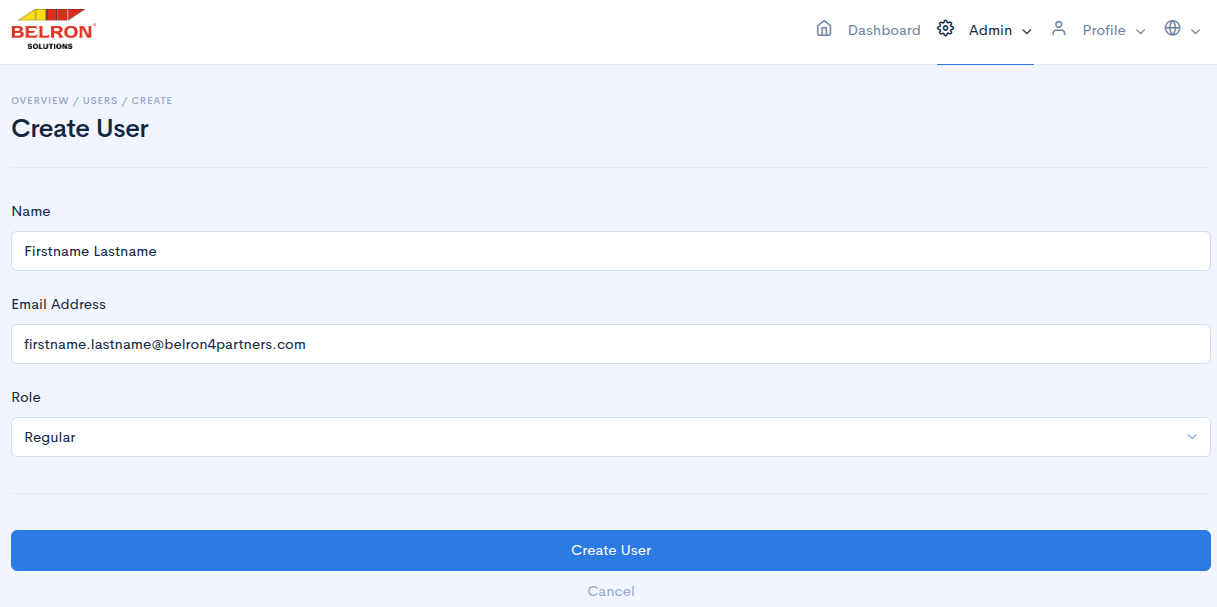
Once you click “Create User” the user will be provisioned in Okta and the user will receive an invitation email which must be accepted within 7 days.
Now it’s time to assign one or more groups to the user, please refer to the section below called “Assign Group Access / Edit User Information”.
4. Assign Group Access / Edit User Information
Group Access decides which groups in Okta the user should be assigned to. Without any groups the user will not be able to login to any systems.
By default each franchise country have at least two groups:
Belron Solutions Gateway
Vifi App
Each of these two groups grants the user access to login to the two given applications from Okta.
To give a user access to a group navigate to the Belron Solutions Gateway (https://auth.belronsolutions.com). Then click on “Admin” and then “Users”.

If you are not seeing “Admin” in the menu, or are unable to login to the Gateway, please read the section above named “Requirements to manage users”.
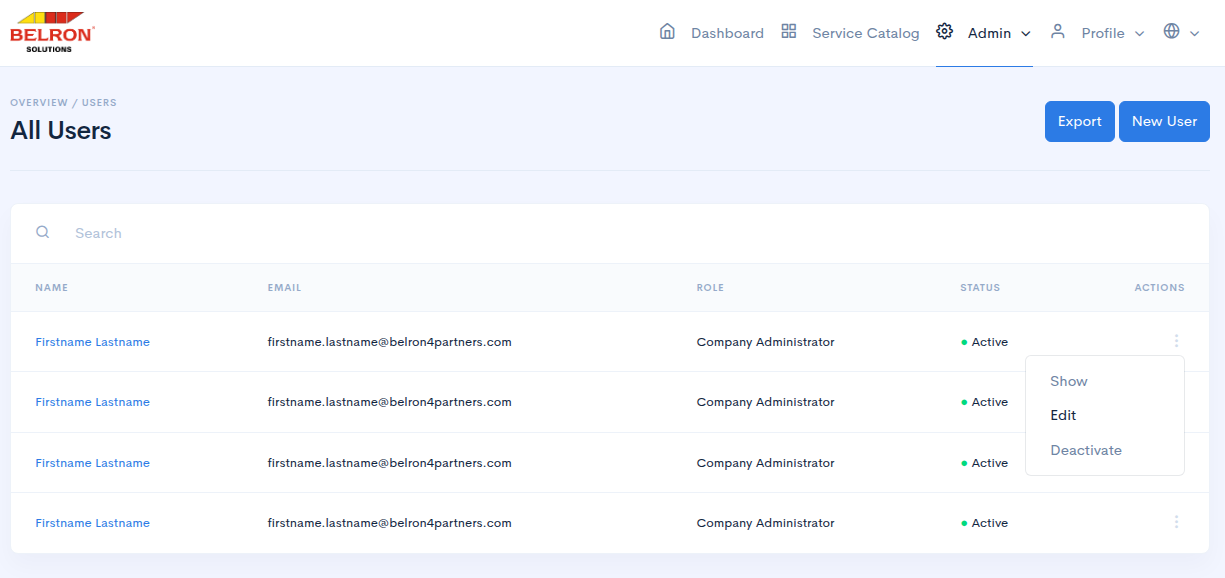
Then click on the 3 dots next to the user you wish to assign group access to, then click “Edit”.
Once on the edit page you can adjust any user related information like name, email and role. The role is specific only to the Belron Solutions Gateway.
You will also be able to grant access to services within the Belron Solutions Gateway that your company has access to, for example the Belron Solutions Portal. It’s however important to note that the user will not be able to use the services they have been granted access to in the Belron Solutions Gateway unless you also assign the group “Belron Solutions Gateway” to them, so that they are allowed to login from Okta.
For users who need access to the Vifi App, please assign the “Vifi App” group. The user will then get access to the ViFi App in Okta.
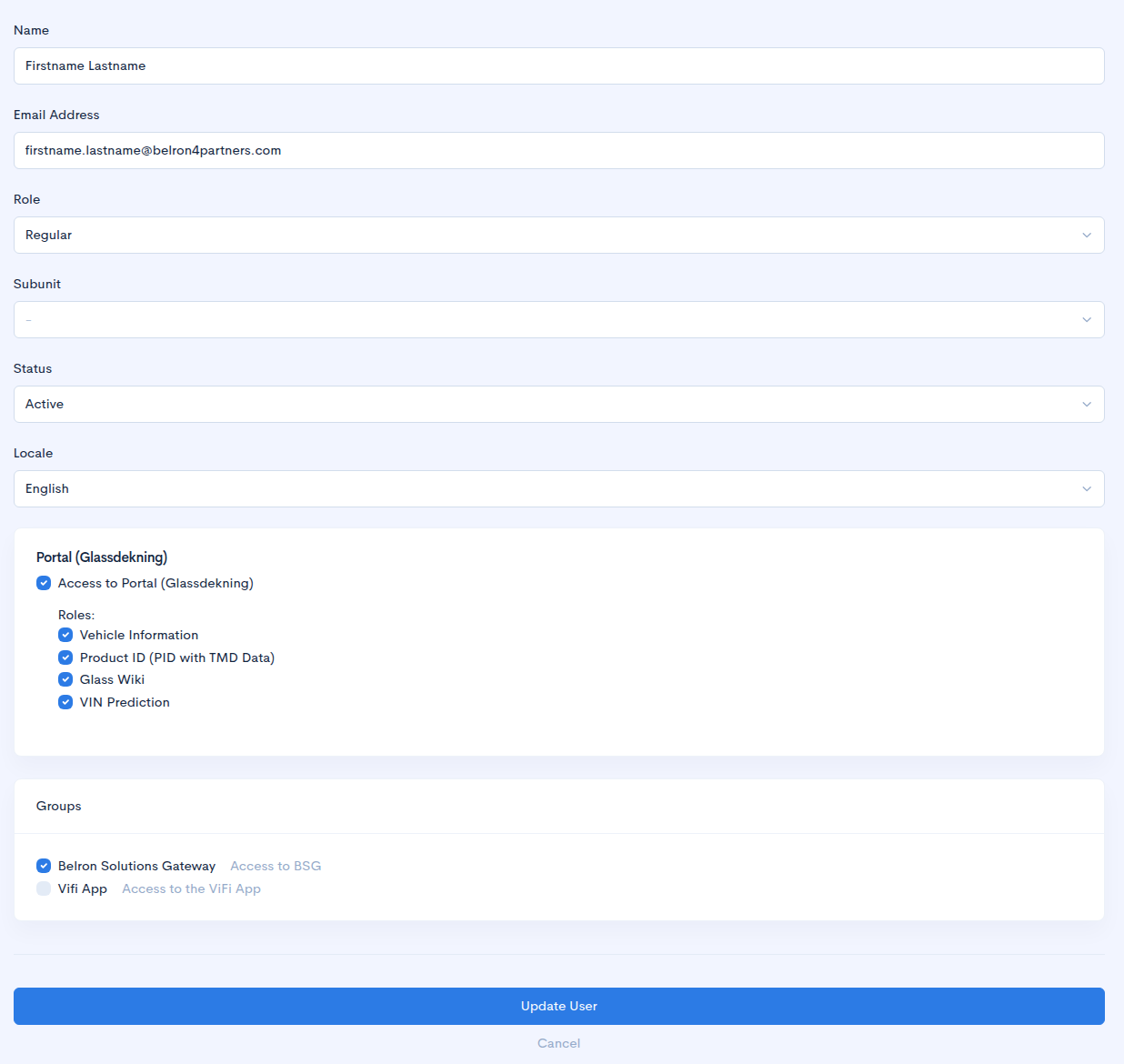
Click save once you are happy with the changes, they will then be pushed to Okta. You can also remove application and group access using this edit page.
5. Deactivate a user
If a user leaves the organization it’s important that they are deactivated so that they no longer can access Belron services.
To deactivate a user navigate to the Belron Solutions Gateway (https://auth.belronsolutions.com). Then click on “Admin” and then “Users”.

If you are not seeing “Admin” in the menu, or are unable to login to the Gateway, please read the section above named “Requirements to manage users”.
Then click on the 3 dots next to the user you wish to deactivate, then click “Deactivate”.
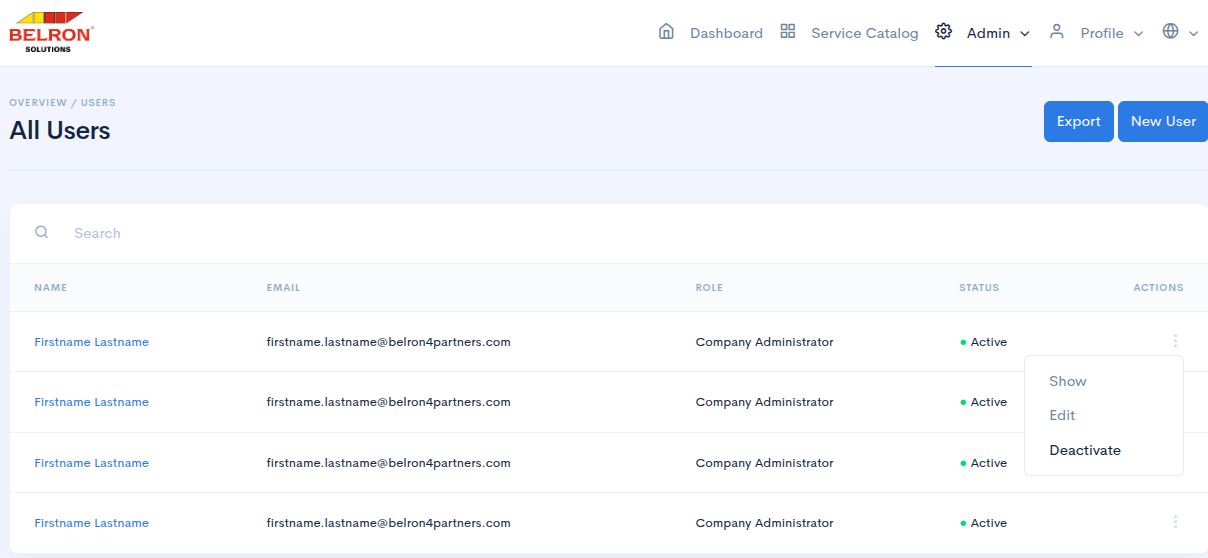
The user will then automatically be removed from Okta and deactivated in the Belron Solutions Gateway.
6. Activate a user
If a user who left the business returns in the future you will need to re-activate their account.
To activate a user navigate to the Belron Solutions Gateway (https://auth.belronsolutions.com). Then click on “Admin” and then “Users”.

If you are not seeing “Admin” in the menu, or are unable to login to the Gateway, please read the section above named “Requirements to manage users”.
Then click on the 3 dots next to the user you wish to activate, then click “Activate”.
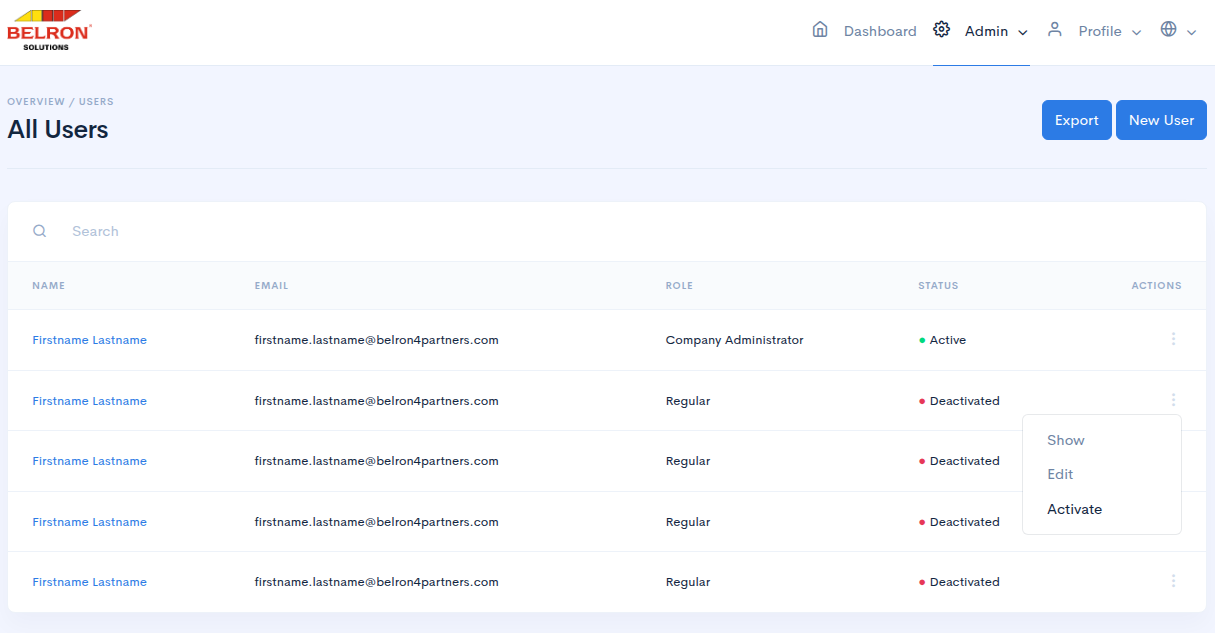
The user will then automatically be provisioned in Okta and the user will receive an invitation email which must be accepted within 7 days.
Remember to also assign group access to the user. Please refer to the section above called “Assign Group Access / Edit User Information”.
Was this article helpful?
That’s Great!
Thank you for your feedback
Sorry! We couldn't be helpful
Thank you for your feedback
Feedback sent
We appreciate your effort and will try to fix the article